
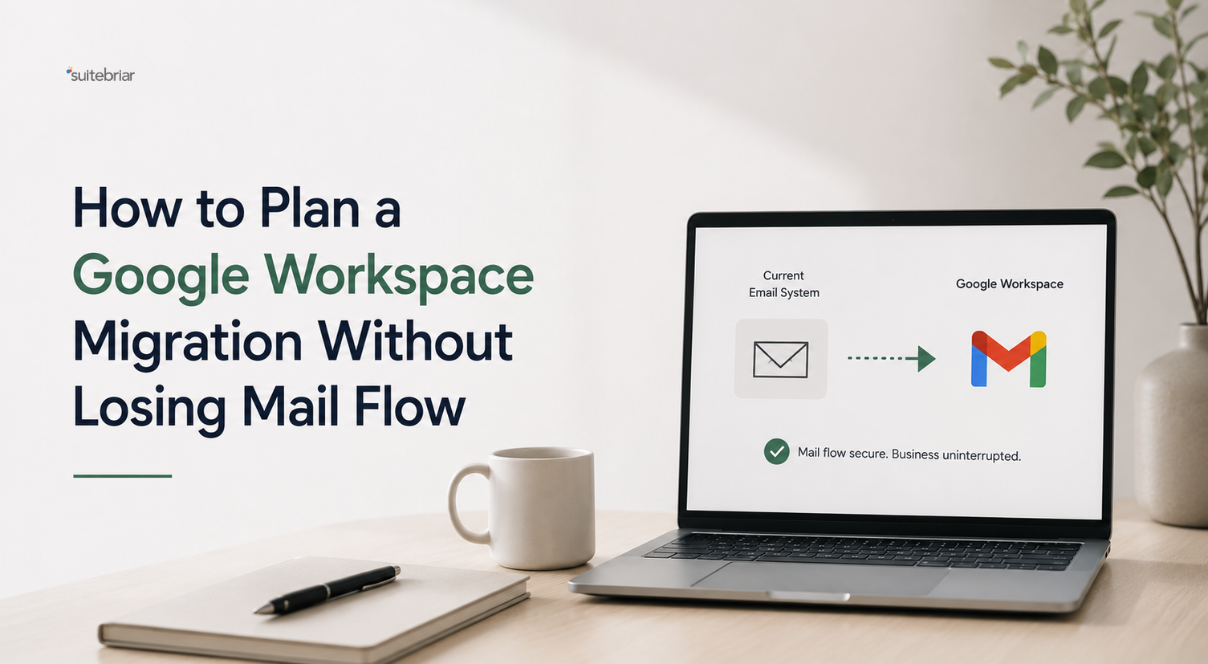
How to Plan a Google Workspace Migration Without Losing Mail Flow


What This Migration Actually Costs You Before the First User Moves
A Google Workspace migration is a multi-phase project that requires far more than a single click in the Admin Console. Before a single mailbox transfers, someone on the team needs super admin access to the destination Google Workspace account, valid credentials for the source environment (Exchange service account, Microsoft 365 global admin, or IMAP credentials per user), and DNS control for the domain. The edition matters too: the built-in data migration tool in the Admin Console is available on most Workspace plans, but Google Workspace Migrate, the standalone server-based product designed for large or complex environments, requires a Business Plus, Enterprise, or Education edition.
The single condition behind most mail-loss incidents is straightforward: switching MX records before all users are provisioned and before authentication records are updated. When that happens, inbound mail arrives at Google's servers with no matching mailbox or with SPF failures that cause receiving servers to reject replies. The time commitment varies with mailbox count and data volume, but organizations should plan for one to four weeks of active work across discovery, pilot, coexistence, and cutover, plus the change management effort on the user side.
Choosing the Right Migration Path for Your Source Environment
There is no universal migration tool, and picking the wrong path usually means discovering its limits halfway through the project. The Admin Console's built-in data migration service handles email from Exchange, Microsoft 365, and IMAP sources and works well for organizations with straightforward mailbox-to-mailbox moves and moderate data volumes. It runs entirely in the cloud, requires no on-premises infrastructure, and is the fastest way to start for teams under a few hundred users.
Google Workspace Migrate is a different product entirely. It runs on a dedicated server, supports parallel migrations at scale, and can move email, calendars, contacts, OneDrive files, SharePoint sites, and some Microsoft Teams content into their Google equivalents. It's the right choice when the source environment is complex, when file migrations need to happen alongside email, or when the organization is large enough that the Admin Console tool's throughput becomes a bottleneck. The catch is that it requires more setup, more infrastructure, and a higher Workspace edition. For organizations evaluating whether their environment warrants this level of tooling, a Google Workspace onboarding and migration consultation can help clarify the right path.
GWMMO, the Google Workspace Migration for Microsoft Outlook desktop tool, serves a narrower purpose: it lets individual users import their local Outlook PST files or connect to an Exchange server and pull mail, contacts, and calendar data into their new Google account. It's useful as a cleanup tool for stragglers or users with local archives, but it's not a scalable migration path for an entire organization.
Discovery and Inventory Before Anything Touches DNS
The discovery phase determines whether you can do a clean cutover or need a coexistence period. Start by auditing mailbox sizes across the source environment, because a handful of oversized mailboxes can bottleneck the entire migration schedule. Identify shared mailboxes and distribution lists, since these don't migrate automatically and need to be recreated as Google Groups or collaborative inboxes. Flag inactive accounts and departed-user mailboxes so you can decide whether to migrate them, archive them, or skip them entirely.
Document the current SPF, DKIM, and DMARC records for every domain the organization sends mail from. These records are the foundation of email deliverability, and if they aren't updated correctly during cutover, outbound mail from the new Google Workspace environment will fail authentication checks at receiving servers. Organizations with multiple sending domains or third-party services that send on their behalf (marketing platforms, CRM systems, ticketing tools) need to account for each one. Hybrid environments with on-premises Exchange and cloud Microsoft 365 may also benefit from cloud migration and consulting services to address broader infrastructure dependencies.
Running Coexistence So Mail Delivers During the Move
Coexistence means keeping MX records pointed at the source mail system while migrating data into Google Workspace in batches. During this window, new mail continues to arrive at the old system, users who have already been migrated access Gmail, and routing rules ensure nothing falls into a gap. In the Admin Console, dual delivery or mail routing rules can forward a copy of inbound mail to Google so that migrated users see new messages in both places. However, the source system remains the system of record until the MX switch.
The delta-sync question comes up in every Google Workspace migration that runs longer than a day or two: mail that arrives at the source after the initial migration pass needs to be pulled into Google before cutover. The Admin Console tool and Google Workspace Migrate both support incremental or delta migrations that capture new mail received since the last sync. Running a final delta pass immediately before the MX switch is what closes the gap.
Coexistence is sustainable for a few weeks in most environments, but it carries risk. The longer it runs, the more likely users are to create conflicting calendar entries, miss shared mailbox updates, or develop workarounds that complicate the cutover. Two weeks is a reasonable upper bound for most organizations, because beyond that, the coexistence overhead typically creates more problems than it prevents.
The Cutover Sequence That Keeps Deliverability Intact
The order of operations during cutover matters more than any individual step. Reordering these steps is how organizations end up with bounced mail, failed DKIM checks, or SPF alignment errors that take days to resolve.
Provision all users in Google Workspace and confirm that every mailbox, alias, and group has a corresponding account. Any address that receives external mail and doesn't exist in Google when the MX records flip will generate a bounce. Update the SPF record for each sending domain to include Google's mail servers; this needs to propagate before the MX switch so that mail sent from Google on behalf of the domain passes SPF checks at receiving servers immediately. Generate and publish DKIM keys in the Admin Console, then enable DKIM signing. DKIM propagation can take up to 48 hours, so this step should happen well before the cutover window. Confirm that the existing DMARC policy is set to monitor mode or is aligned with both the old and new SPF and DKIM records, because a strict DMARC policy that doesn't account for Google's servers will cause legitimate mail to be quarantined or rejected.
Only after all of that is verified do you change the MX records to point to Google. The sequence protects deliverability because every authentication mechanism is already in place and propagated before the first message routes through Google's infrastructure.
Setting DNS TTL Ahead of the Cutover Window
Twenty-four to forty-eight hours before the planned cutover, lower the TTL on your MX records to something short, typically 300 seconds. This ensures that when you publish the new MX values pointing to Google, DNS resolvers worldwide pick up the change within minutes rather than hours. If the TTL is still set to its default (often 3600 seconds or higher), mail servers that cached the old record will continue delivering to the source system long after the switch, and any mail that arrives there after you've stopped monitoring it is at risk of being lost.
Verifying SPF, DKIM, and DMARC After the MX Switch
Within the first hour after the MX change, send a test message from an external address (one that isn't part of the organization) to a migrated user. Check the full message headers in Gmail for a DKIM signature that matches the domain and an SPF pass result. Confirm that the DMARC policy in the headers shows alignment. Set up DMARC aggregate reporting if it isn't already configured, because the 48 hours after a cutover are when alignment failures are most likely to surface as third-party senders and automated systems catch up with the new authentication records. Spot-check a few more users across different aliases and domains to make sure the results are consistent.
What the Migration Tools Do Not Move and How to Handle the Gaps
Every migration tool has data fidelity limits that the product pages don't emphasize. Outlook folder structures, for example, translate into Gmail labels, but nested folder hierarchies often flatten or produce label names that are confusing to users. Shared mailbox permissions don't carry over; you'll need to recreate them manually as delegated access or Google Groups with appropriate permissions.
File migrations from OneDrive and SharePoint bring the files themselves, but sharing permissions and folder-level access controls require manual remediation in Google Drive. Shared drive membership needs to be set up independently. Calendar events generally migrate well from Exchange, but recurring event exceptions, room resource bookings, and calendar delegation settings often need manual attention. Contacts stored in personal Outlook address books may require a separate import step using CSV or the GWMMO tool.
Microsoft Teams content is partially portable. Chat messages and channel conversations can move into Google Chat through Google Workspace Migrate, but Teams apps, tabs, connectors, and meeting recordings don't have direct equivalents. The practical consequence is that organizations relying heavily on Teams integrations need a parallel plan for recreating those workflows in Google Chat, Spaces, or third-party tools.
Piloting the Migration Before the Full Rollout
Before committing the entire organization, run a pilot with five to ten users whose mailboxes represent the range of what you'll encounter: a large mailbox, a small one, someone with complex folder structures, someone who uses shared calendars heavily, and at least one user on a secondary domain or alias. Migrate them using the same path you've chosen for the full rollout and have them work in Google Workspace for several days. Check data fidelity, note what didn't transfer cleanly, and measure how long each mailbox took. Those per-user time estimates become the basis for scheduling the broader rollout in manageable cohorts rather than guessing at a timeline.
Rollback Conditions and What a Rollback Actually Requires
A few users seeing delayed mail delivery, minor label formatting issues, or mobile devices that need to be re-provisioned are normal migration noise and don't warrant a rollback. Rollback is justified when mail delivery is failing consistently for a significant portion of users, when authentication errors are causing widespread rejections at external recipients, or when spot checks confirm actual data loss in migrated mailboxes.
Rolling back means reverting MX records to point back at the source system, and it isn't instant. The same DNS propagation delay that affects the cutover applies in reverse, so mail will be in limbo during the revert window, arriving at both systems unpredictably until propagation completes. This is why lowering TTL before cutover matters so much, and why having the source environment still running and monitored during the first 48 hours is a non-negotiable part of the plan.
Post-Migration Admin Work Before Calling It Done
Migration isn't finished when the last mailbox syncs. Remap any remaining user aliases and verify that every address the organization publishes externally resolves to the correct Google Workspace account. Apply device management policies, security settings, and organizational unit structures in the Admin Console. Run spot checks across user cohorts to confirm data completeness: pick a few users at random, check their oldest and newest messages, verify calendar events, and confirm file access in Drive.
Set a defined schedule for decommissioning the source environment. Keeping the old system running indefinitely is a cost and a security surface. Most organizations can safely shut down the source within 30 to 90 days after cutover, once they've confirmed no critical data was missed and no automated systems are still pointed at the old infrastructure.
When to Bring in a Migration Partner
A small organization with a single domain, straightforward mailboxes, and an IT admin comfortable with DNS can handle a Google Workspace migration in-house using the Admin Console tool. The complexity threshold rises quickly, though. Hybrid environments with on-premises Exchange and cloud Microsoft 365, mailbox counts in the thousands, coexistence periods longer than two weeks, Teams artifact migration, or strict deliverability SLAs for transactional mail all push the project into territory where the cost of a mistake outweighs the cost of expert help.
Suitebriar, a Google Cloud Premier Partner whose team has migrated over 5 million users to the cloud, handles the full migration lifecycle from discovery through post-cutover validation. For organizations where the scope or stakes make in-house execution risky, working with an experienced migration partner compresses the timeline and protects mail flow throughout the transition. If that sounds like your situation, get in touch through Suitebriar's onboarding and migration page to scope the project.