

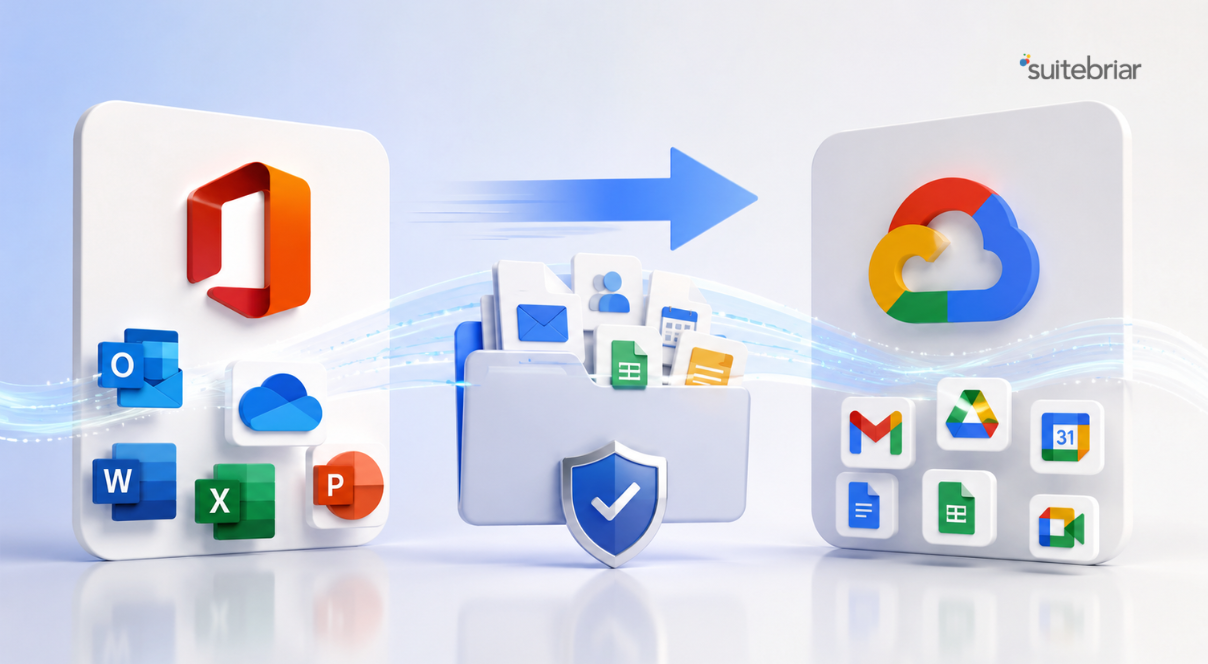
Advanced Strategies to Migrate From Office 365 to Google Workspace Without Data Loss


The decision to migrate from Office 365 to Google Workspace is increasingly common among organizations seeking better collaboration tools, simpler administration, and a more integrated cloud platform. But making the decision is the easy part. Executing the migration without losing data, disrupting operations, or creating a months-long cleanup project is where the real challenge lies.
Office 365 environments accumulate years of email history, calendar data, contacts, OneDrive files, SharePoint sites, Teams conversations, and shared mailboxes, all of which must be accounted for, mapped, and transferred accurately. A migration that loses even a small percentage of this data can erode user trust, create compliance risks, and generate months of support tickets. Suitebriar has helped organizations of all sizes migrate from Office 365 to Google Workspace with a methodology designed to eliminate data loss at every stage. This article covers the advanced strategies that make zero-data-loss migrations achievable.
Why Office 365 to Google Workspace Migrations Are Uniquely Complex
Not all platform migrations carry equal risk. Moving from one version of Exchange to another, for example, involves transferring data between systems that share a common architecture and data model. Migrating from Office 365 to Google Workspace involves moving data between fundamentally different platforms with different storage structures, permission models, sharing paradigms, and feature sets.
Email is the most straightforward data type to migrate, but even email presents challenges. Office 365 uses a folder-and-subfolder structure that does not map directly to Gmail's label-based organization. Calendar data must account for recurring event patterns, resource room bookings, and delegate permissions that work differently between Outlook and Google Calendar. OneDrive files must be migrated to Google Drive with their sharing permissions and folder structures preserved. SharePoint sites, which often contain document libraries, lists, and workflows, require careful planning to map to equivalent Google Workspace capabilities.
Teams conversations present an additional challenge. While Google Chat provides comparable messaging functionality, the data structure and threading model differ from Teams. Organizations that require full retention of Teams message history must plan for this migration separately, as standard Google Workspace migration tools do not handle Teams data natively.
Pre-Migration Planning: The Foundation of Zero Data Loss
Comprehensive Data Inventory
The first step in any zero-data-loss migration is knowing exactly what needs to be moved. Suitebriar begins every Office 365 to Google Workspace migration with a comprehensive data inventory that catalogs every mailbox (active, shared, and inactive), calendar, contact list, OneDrive account, SharePoint site, distribution list, security group, and Teams channel in the source environment. This inventory includes data volumes, last activity dates, and any special configurations such as litigation holds, retention policies, or custom mail flow rules.
This inventory serves two purposes. First, it ensures that nothing is overlooked during migration planning. Second, it provides a baseline against which post-migration validation can be measured. If the inventory shows 450 mailboxes with a combined 2.3 TB of data, the post-migration audit should confirm that all 450 mailboxes arrived in Google Workspace with their data intact.
User Communication and Change Management
Data loss during migration is not always a technical failure. Sometimes it occurs because users take actions during the migration window that conflict with the data transfer process, such as deleting messages in Office 365 that have not yet been migrated, or creating new data in the source system after the migration tool has already completed its pass. Effective change management prevents these user-caused data loss scenarios.
Suitebriar's Google Workspace onboarding & data migration services include a structured communication plan that informs users about migration timelines, expected behaviors, and any temporary restrictions on their accounts. Users are instructed to avoid reorganizing folders, deleting content, or changing account settings during active migration windows. This communication is coordinated with Google Workspace end-user training so that users are prepared to work productively in their new environment from the moment their migration is complete.
Migration Execution: Strategies for Complete Data Transfer
Delta Sync and Incremental Migration
A single-pass migration, where all data is copied from Office 365 to Google Workspace in one operation, is risky for large environments. The migration window may last days or weeks, and any data created in the source system after the initial copy begins will be missed. Delta sync, also called incremental migration, solves this by running multiple passes. The first pass copies the bulk of historical data. Subsequent passes copy only the data that has been created or modified since the previous pass, narrowing the delta with each iteration.
On cutover day, a final delta sync captures the remaining changes, ensuring that the Google Workspace mailbox matches the Office 365 mailbox down to the most recent message. Suitebriar schedules these delta syncs strategically, running them during off-peak hours to minimize load on both platforms and reduce the risk of throttling by Microsoft's migration APIs.
Handling High-Risk Data Types
Certain data types carry a higher risk during migration and require special handling. Shared mailboxes in Office 365 must be mapped to corresponding structures in Google Workspace, whether that is a Google Group, a delegated account, or a collaborative inbox. The choice depends on how the shared mailbox is used, and making the wrong choice can result in lost access or broken workflows.
Calendar data requires particular attention to recurring events, all-day events that span time zones, and resource room bookings. Suitebriar's migration process includes specific validation checks for these high-risk calendar patterns, ensuring that a recurring weekly meeting created three years ago in Outlook arrives in Google Calendar with the correct recurrence pattern, attendees, and resource reservations intact.
OneDrive to Google Drive migration must preserve sharing permissions, which requires mapping Office 365 user identities to their corresponding Google Workspace identities. Files shared with external users present an additional challenge, as the sharing links change between platforms. Suitebriar handles this by generating post-migration sharing reports that identify externally shared files requiring updated links.
Post-Migration Validation: Proving Zero Data Loss
A migration is not complete until data integrity is verified. Suitebriar conducts post-migration validation for every account, comparing source and destination data across multiple dimensions: total email count, folder/label structure, calendar event count, contact count, and file count. Discrepancies are flagged for investigation and remediation before the migration is declared complete.
For organizations with compliance requirements, this validation extends to Google Vault. Suitebriar configures Google Vault eDiscovery setup as part of the migration project, ensuring that retention policies and litigation holds are active from the moment data arrives in Google Workspace. This is critical for organizations in healthcare, legal, financial services, and education, where regulatory obligations require continuous data retention. For organizations subject to Google Workspace HIPAA compliance, Vault configuration is a non-negotiable component of the migration.
Security Configuration After Migration
Migrating data is only half the project. Securing the new environment is equally important. Office 365 and Google Workspace have different security models, and the security configurations from the source environment do not transfer automatically. SPF, DKIM, and DMARC records must be updated for every sending domain. OAuth application permissions must be reviewed and restricted. Admin roles must be reassigned in the Google Workspace Admin console. Mobile device management policies must be configured or migrated.
Suitebriar conducts a Google Workspace security audit after every migration, evaluating the new environment against Google Workspace security best practices. This audit produces a prioritized remediation plan that addresses any gaps in the organization's security posture. For organizations that want ongoing security management, Suitebriar's Google Workspace managed services include continuous monitoring, quarterly security reviews, and proactive configuration updates as Google releases new security features.
Training and Adoption: Ensuring Users Succeed in Google Workspace
A technically perfect migration can still fail if users cannot work effectively in their new environment. The transition from Outlook to Gmail, from OneDrive to Drive, and from Teams to Chat and Spaces involves a learning curve that affects productivity if not managed proactively. Suitebriar's Google Workspace admin training equips IT administrators with the knowledge needed to manage the new environment confidently, while Google Workspace end user training helps employees adopt new workflows quickly.
Training is most effective when it is delivered close to the migration date and reinforced through follow-up sessions. Suitebriar offers both live and recorded training options, along with quick-reference guides tailored to the specific Google Workspace configuration the organization is using. For organizations deploying Gemini for Google Workspace, training includes practical demonstrations of AI-powered features in Gmail, Docs, Sheets, and Meet, helping users leverage the full capability of the platform from the start.
Long-Term Success: Managed Services After Migration
The migration is the beginning of the Google Workspace journey, not the end. As the organization settles into the new platform, questions arise, configurations need adjustment, new features are released, and security requirements evolve. Managed services & premium support for Google Workspace from Suitebriar provides ongoing access to certified engineers who understand the organization's environment and can resolve issues quickly.
This ongoing support model is particularly valuable for Google Workspace for small business organizations that do not have dedicated Google Workspace administrators on staff. Suitebriar's managed services team handles account provisioning, offboarding, security policy management, Vault administration, and escalation to Google's engineering teams when advanced issues arise. A dedicated Google Cloud technical account manager provides strategic guidance, helping the organization optimize its Google Workspace investment and plan for future initiatives such as Google Cloud consulting services or generative AI strategy workshop engagements.
Migrating With Confidence
Migrating from Office 365 to Google Workspace is a significant undertaking, but it does not have to be a risky one. With the right planning, the right tools, and the right partner, organizations can complete the transition without losing a single email, calendar event, or file. The strategies outlined in this article, from comprehensive data inventory and delta sync to post-migration validation and security hardening, represent the methodology that Suitebriar applies to every migration engagement.
As a Google Cloud Premier Partner with the Work Transformation specialization and more than a decade of experience delivering Google Workspace migration services, Suitebriar brings the technical depth and project management discipline needed to make zero-data-loss migrations a reality. Whether your organization has 50 users or 50,000, the approach is the same: plan thoroughly, execute methodically, validate rigorously, and support continuously. That is how you migrate from Office 365 to Google Workspace without data loss.
TLDR
Migrating from Office 365 to Google Workspace is complex because the two platforms are architecturally different. Email folders, calendar permissions, OneDrive sharing structures, and Teams conversations don't map cleanly to their Google equivalents, and each requires specific handling. The zero-data-loss approach has three phases. Before migration: inventory every mailbox, shared account, file, and policy so nothing gets overlooked and you have a baseline to validate against. During migration: use delta sync (multiple incremental passes) rather than a single copy so data created mid-migration isn't missed, with a final sync right before cutover. After migration: validate account by account, comparing email counts, folder structures, and file counts, then configure Vault retention and harden security settings since nothing transfers automatically. High-risk data types needing extra attention are shared mailboxes, recurring calendar events, and externally shared OneDrive files whose sharing links will break and need to be regenerated. User behavior during migration is an underrated risk. People deleting or reorganizing files mid-migration can cause data loss that has nothing to do with the tools.
.png?width=150&height=150&name=Building%20Custom%20Google%20Admin%20Console%20Training%20Programs%20That%20Scale%20Across%20Enterprise%20Teams%20(1).png)

.png)
